THE NEW MUSVIDEO AI · GETTING STARTED
Your song. Your first music video.
No editing experience needed. Follow one real project, see what each step does, and watch the finished result.
October 3, 2026 · 5 minute guideSTART WITH THE RESULT
Unfolding Horizon
A handcrafted paper ocean, a small rising sun, and two shots. Press play to hear the song with the finished visuals.
Actual project · 20 seconds · Landscape 16:9
See how it was madeBEFORE THE FIRST STEP
Bring a song and an idea
Open Make a music video and work through these five choices, one screen at a time.
“A handcrafted paper ocean unfolds into blue hills as a small sun rises. End in a calm sea. No people.”
The idea behind this example. Describe the scene you imagine; you do not need a technical prompt.
- 1
Direction
Watch the examples and choose a creative direction. Our example uses Art & beat montage.
- 2
Song
Upload audio. Drag the ends of Trim Audio to choose your section. We select 5–25 seconds.
- 3
Look
Choose a visual style from the image examples. We use a papercraft look.
- 4
Idea
Describe what you want to see. Pick landscape or vertical and a video engine here, too.
- 5
Review
Check your choices and estimated cost, then choose Start to analyze the song and write the story.
FIVE STEPS INSIDE YOUR PROJECT
Choose a step to look inside
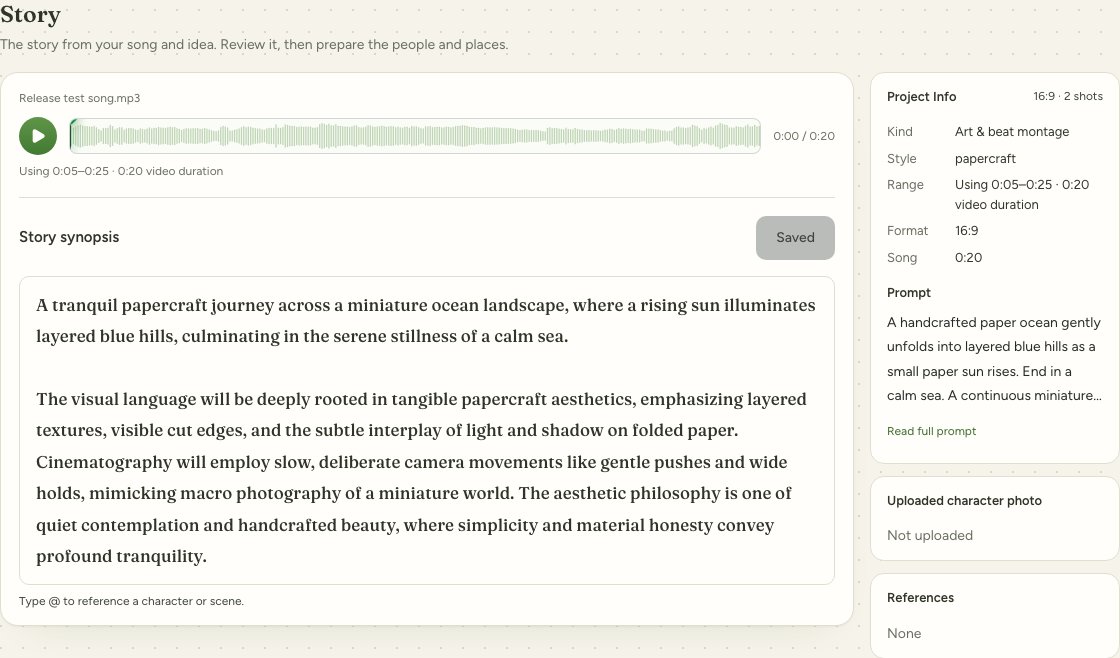
Read your story
MusVideo AI turns your song and idea into a story outline. Read it before you spend credits on pictures or clips.
- Play the selected song section and check the duration.
- Edit the story text and type @ to link an existing person or place. Choose Save story after making changes.
- When the idea feels right, choose Continue to Cast.
In our project: For this example: a folded paper ocean opens into blue hills, then settles into a calm sea.
Watch the two individual clips
MusVideo AI appears when you need it
When you request a storyboard or an AI adjustment, the window shows its progress and messages. Choose Done to tuck it back into the corner. Image and video generation stays on the cards, so you can come back later.
To change something, use Edit or the colored AI icon on the relevant step. Compose only assembles the final video; return to Shots to change the storyboard.
A few things to know
Do I need a photo of a person?
No. This example is a landscape. Add a person in Cast when your story needs a consistent character.
Why is the result 20 seconds when the source song is 30 seconds?
We selected seconds 5–25 in Trim Audio. The story, shots and composition use that selected range. Choose your own range when uploading.
Do I have to start over to change one shot?
No. Edit the shot's prompt and regenerate that item. If its image changes, update its video too, then compose again. Check the displayed credit cost before generating.
Try it with your song
Start with a short section and make your first music video.
Make a music videoFind this guide again in Help, beside your credits on the video page.