
To make an AI music video from a Suno song, download an available audio version of the track, upload it to MusVideo, choose the section you want to illustrate, review a storyboard, generate the shots and compose the result with that audio. The downloadable-audio route gives you a local source file you can keep and reuse.
Choose MP3 when you want a smaller upload, or WAV if it is available for your track and fits the upload limit. Suno’s current format guide lists MP3 on web and mobile and WAV for Pro and Premier subscribers on suno.com. Availability can vary by song, plan and device, so use the options actually shown in your account. Suno: available download formats (https://help.suno.com/en/articles/13926081).
Start with a short chorus or verse to evaluate the visual direction, then extend the approach to the rest of the song. This article combines Suno’s official download instructions with MusVideo’s current import controls and published workflow examples. The papercraft screenshots below illustrate the MusVideo steps; they are not presented as a verified Suno-origin project.
1. Download the audio from Suno
In Suno’s Library or Workspace, locate your song, open More Actions (…), select Download and choose an available audio format. Keep the downloaded original. These steps follow Suno’s official download guide (https://help.suno.com/en/articles/2409921), checked November 9, 2026.
| Option | Suno’s documented availability | When to use it here |
|---|---|---|
| MP3 | Song downloads on web and mobile; options depend on the account and song | A compact audio file for upload and initial tests |
| WAV | Pro or Premier on suno.com; mobile downloads default to MP3 | An available source file that fits the upload limit |
| Video download | Suno also lists video downloads | This tutorial uses the audio file to build a new scene-based video |
Source: Suno file-format guide (https://help.suno.com/en/articles/13926081). A format being listed does not guarantee unlimited downloads or access to every track. Check the current options in your account.
For public or commercial release, check the current Suno Terms of Service (https://suno.com/terms) and the permissions attached to the particular song. Turning the track into a video does not grant additional rights to music, artwork or a person’s likeness.
2. Bring the song into MusVideo
Open Make a music video, choose a creative direction and continue to Song → Upload. Select the audio you downloaded. The upload accepts MP3, WAV, FLAC, M4A and OGG, with a 50 MB maximum and audio longer than 5 seconds.
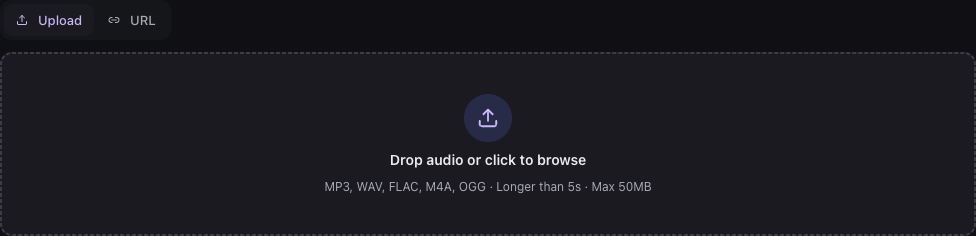
MusVideo upload controls, captured November 9, 2026. This is a product screenshot, not a fabricated Suno interface.
The URL tab also provides a Suno-link input. If the share link does not resolve or the audio cannot be fetched, use the downloaded file instead. A visible input is not a guarantee that every public or private Suno link can be imported.

Actual URL input, November 9, 2026. Download-and-upload is the primary workflow in this guide.
Why might a WAV exceed the upload limit?
An uncompressed stereo PCM WAV at 44.1 kHz and 16 bits uses about 176,400 bytes per second: 44,100 × 2 channels × 2 bytes. A three-minute file is roughly 31.8 MB, while a five-minute file is roughly 52.9 MB, before small container overhead. This is format arithmetic using decimal MB, not a measurement of a Suno download.
| Illustrative audio file | Three minutes | Five minutes |
|---|---|---|
| Stereo PCM, 44.1 kHz, 16-bit | About 31.8 MB | About 52.9 MB |
| MP3 encoded at 192 kbps | About 4.3 MB | About 7.2 MB |
These are explicitly assumed formats; Suno’s actual encoding may differ. Check your file’s size. A smaller available MP3 can be more convenient than a large WAV. Use the audio version you are permitted to download and publish.
3. Select an excerpt and describe the visuals
Choose the song section after import. Decide what changes in the visuals from beginning to end. You might follow a character, show a recurring landscape or build an abstract montage around the song’s changing energy.
A useful starting prompt identifies a subject, a setting, the look and the progression. For example: “A small paper boat crosses a folded blue ocean at sunrise. Begin close to the boat, reveal distant paper hills, and finish on still water. Keep the paper texture and warm light throughout.” This is a suggested creative brief, not a guarantee of a particular output.
For a chorus excerpt, give the section one clear visual idea. For a whole song, review how verses, choruses and transitions are represented before generating all the media. Your selected range determines the planned coverage.
4. Review the shots, then generate the clips
Read the story and storyboard, prepare required references, and inspect the generated keyframes. Check recurring details before animating them. The MP3/WAV tutorial explains the complete sequence.
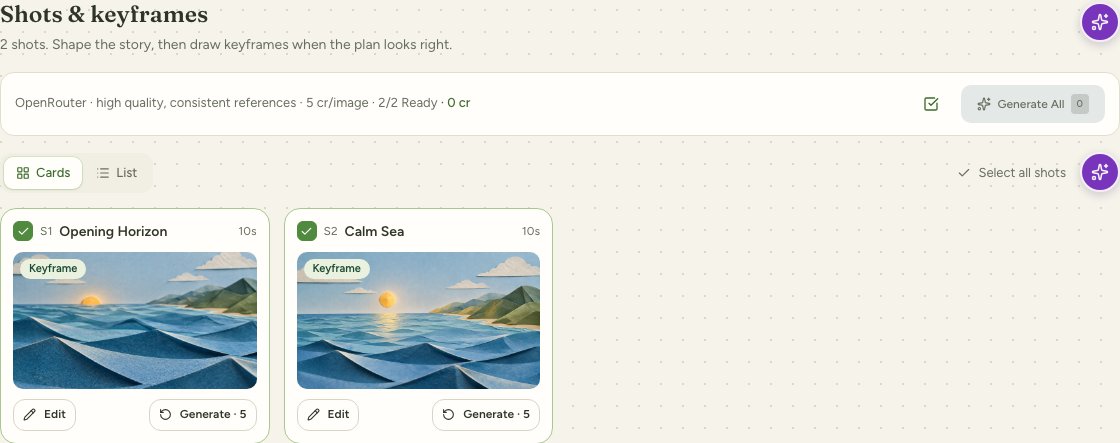
Unfolding Horizon, the published MusVideo workflow example: two 10-second shots. Its source is not identified here as a Suno song. Watch the example.
If a clip needs a different camera move or appearance, edit the affected scene and generate the relevant replacement. Preview the whole sequence with the audio. Generated consistency needs review; a shared prompt or reference does not guarantee identical details across every shot.
5. Compose and review the exported file
Create the final MP4 after the required media is ready. Check the actual download for the correct audio selection, complete visual coverage and the latest scene revisions. Choose the frame shape for the destination you intend to use, and verify that destination’s current publishing requirements.
Plan for references, keyframes, clips, revisions and composition as separate possible costs. Start with a short test and use the displayed quote. New personal accounts receive 50 trial credits; the balance does not guarantee a finished full-song video. View current plans.
Frequently asked questions
How can I make a music video from a Suno song?
Download an available audio version of the song from Suno, upload it to MusVideo, choose a section and visual direction, review the storyboard, generate the shots and compose the result with your audio.
Do I need a WAV file?
No. MusVideo accepts MP3 as well as WAV. Suno’s help center lists MP3 on web and mobile, and WAV for Pro and Premier subscribers on suno.com. Check the download options available for your track and plan.
What if a Suno share link fails to import?
Download the audio through Suno’s available download controls and use Upload in MusVideo. A private, changed or unavailable share page may not provide usable audio.
Can I monetize the resulting video?
Check Suno’s current terms and the permissions for your particular song, as well as any other music, images or likenesses you use. Creating a video does not expand the rights you hold in its source materials.
Sources and verification
- Suno: How do I download songs? (https://help.suno.com/en/articles/2409921), checked November 9, 2026.
- Suno: What types of files can I download? (https://help.suno.com/en/articles/13926081), checked November 9, 2026.
- Suno Terms of Service (https://suno.com/terms), the controlling source for current permissions.
- MusVideo creation workspace, upload controls observed November 9, 2026; published visual walkthrough.
Have your audio ready? Upload your song to MusVideo and choose the section you want to bring to life.