
To change one scene in an AI music video, select that shot, edit its image or motion prompt, regenerate the affected media and compose the sequence again. MusVideo provides shot-level controls, so a local visual correction can preserve the other approved scenes and the selected song.
Choose the edit according to what is wrong. Appearance changes usually start with the image prompt and a new keyframe; movement changes start with the video prompt. Saving a prompt alone does not replace an existing image, clip or exported file. Review the new media before making a new download.
Below, the published Unfolding Horizon project provides a concrete two-shot, 20-second example of independently editable scenes. The screenshots show its actual workspace. The prompt-revision table is an instructional example, and the cost table is a calculation using current rates; neither is presented as a measured before-and-after rendering experiment. Watch the original project.
Decide what needs to change
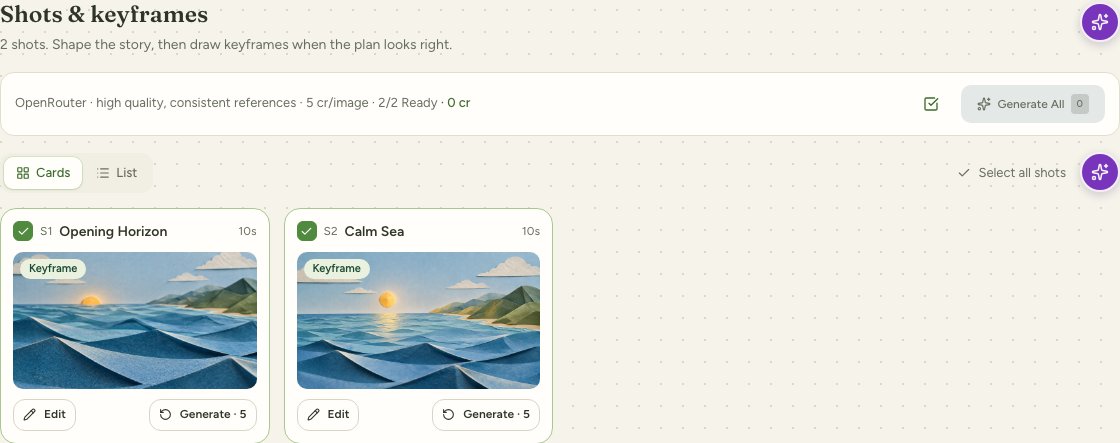
Actual project screenshot, October 3, 2026. Each shot has its own controls. The UI and prices in this archived screenshot can differ from your current workspace.
| Problem | Start with | Media to check or regenerate |
|---|---|---|
| Wrong setting, clothing, object or composition | Image prompt and relevant references | Selected keyframe, then its video clip |
| Camera moves too quickly | Video motion prompt | Selected clip using the accepted keyframe |
| The story event itself is wrong | Story or storyboard edit | Every affected prompt and dependent asset |
| The clip is correct but the download is old | Composition | Export again from the current approved media |
Keep the change as specific as possible. A request to change the whole story or a shared character can affect several scenes. Use local prompt editing for a local correction, and review the affected scope when requesting a broader AI adjustment.
1. Select the shot and edit the right prompt
Open your project in MusVideo. Find the target shot in Shots / Images for the still frame, or Videos for motion. The exact label can vary with the workspace version. Use the selected shot’s edit control and save the revised text.
For the papercraft example, suppose the image is already correct but the camera should be calmer. Keep the scene’s materials, lighting, subject and duration fixed. Change the movement instruction.
| Prompt element | Before, illustrative | After, illustrative |
|---|---|---|
| Subject and setting | A paper ocean, blue hills and a small sun | Keep the same paper ocean, blue hills and sun |
| Camera | Move toward the horizon | Use a slow, steady push toward the horizon |
| Action | Waves unfold across the frame | Let the paper waves unfold gently, without abrupt movement |
| Continuity | Not specified | Preserve the accepted keyframe’s materials, palette and lighting |
This is an example of how to write a focused revision, not a transcript of an actual regeneration. Do not expect exact output from any prompt. Play the generated clip and judge whether it solves the problem.
2. Regenerate the affected media
For an image change, generate the selected keyframe and inspect it before generating its video. For a motion-only change, use the accepted keyframe and regenerate the selected video clip. Confirm the scope and displayed credit quote before starting.
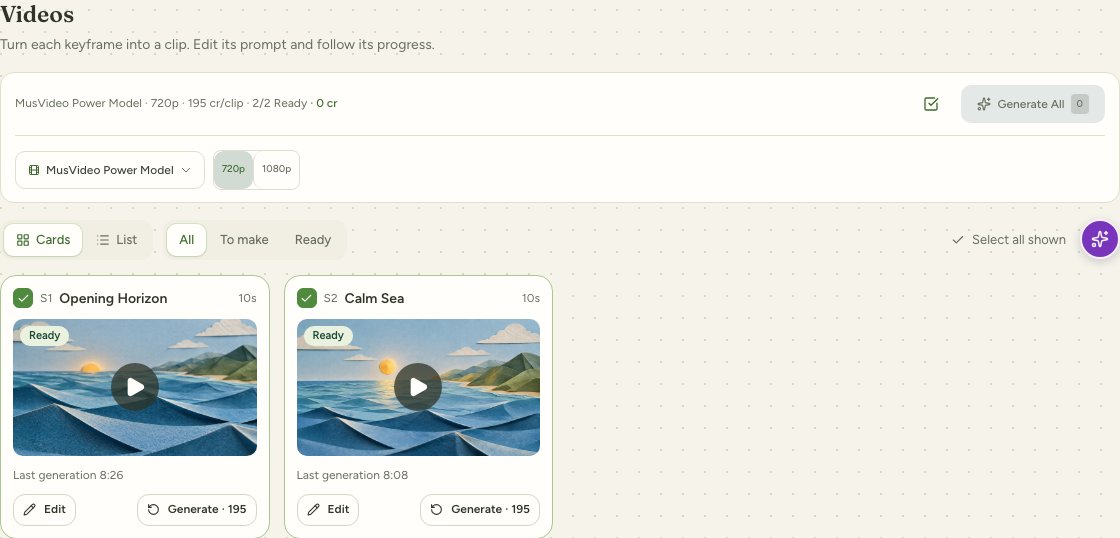
Actual Videos screen from Unfolding Horizon, October 3, 2026. Play both original clips.
The distinction matters: an old clip can still contain the old appearance even after a new image has been generated. Check the clip itself. Likewise, changing a shared reference does not prove that every existing shot now reflects that reference.
3. Review the change in context
Play the revised shot, the transition before it and the transition after it. Listen to the selected song section while checking the movement. Confirm that timing, subject placement and lighting still work with the neighboring shots.
In a two-shot sequence of 10 seconds + 10 seconds = 20 seconds, revising the second shot should not silently change the first shot’s duration or the selected audio range. This arithmetic is a useful coverage check, not a rule that every project must use 10-second shots.
4. Export the updated sequence
Compose again once you accept the new media. The editing preview and a previously downloaded MP4 can represent different versions. Download the new export and verify that the corrected scene appears at the expected point.
Before you publish, check three places: the revised shot, the cut into the following shot and the end of the song. An export that finishes successfully still needs a visual and audio review.
What does a local revision cost?
For the current MusVideo Agent workflow, the default MusVideo Power Model clip rate used in this calculation is 195 credits per generated clip, and composition is 1 credit. These values come from the same video-rate configuration used for quotes. The table assumes an already accepted image and excludes planning, references, image regeneration and further retries. The quote shown for your selected operation takes precedence.
| Illustrative operation | Calculation | Estimated credits |
|---|---|---|
| Regenerate one video clip, then compose | 1 × 195 + 1 | 196 |
| Regenerate both clips in the two-shot example, then compose | 2 × 195 + 1 | 391 |
| Generate a replacement keyframe too | Add the selected image model’s quoted cost | Confirm in the workspace |
This is a comparison of operation counts at the stated rate, not the historical bill for Unfolding Horizon or a promise that one attempt will be enough. Different models, reference work and further revisions change the total. Check the workspace quote and available credit plans.
Frequently asked questions
Which AI music video tools let me edit individual scenes before exporting?
MusVideo supports shot-level image and video prompt editing and regeneration. When comparing tools, check whether they preserve other scenes, show the revision cost and let you export the updated sequence.
Does editing a prompt automatically update the finished video?
No. Saving text does not replace existing media. Generate the affected image or clip, review it and compose again to update the downloadable file.
Can I change camera motion without changing the keyframe?
For a motion-only change, keep the accepted keyframe and edit the video prompt. Regenerate the selected clip and check the result. Changes to the scene’s appearance may require a new keyframe as well.
Sources and verification
- Unfolding Horizon visual guide and original clips, recorded October 3, 2026.
- MusVideo workspace: shot selection, image/video regeneration and composition workflow. Rate calculation checked against the application’s quote configuration on November 9, 2026; your current operation quote takes precedence.
- MP3/WAV workflow and published production evidence.
Start with one clear correction. Open your music video, identify the affected shot and review the cost before regenerating it.